
How to Plan a Teamcenter RAC to Active Workspace Migration
A Teamcenter RAC to Active Workspace migration is primarily a client and user-experience transformation, not inherently a data migration or version upgrade. One estimate puts the transition at 2-6 weeks, including system setup, data validation, and user training. The actual scope depends on the customizations, access requirements, and integrations involved.
A Teamcenter RAC to Active Workspace migration can change how teams find, review, and update product information. Carrying every RAC customization forward unchanged, however, may add complexity. A structured plan helps you decide what to retain, redesign, replace, or retire while protecting essential workflows.
This guide explains how to assess your current Teamcenter environment, map user and business requirements, and validate data access, permissions, relationships, and integrations. It also covers user acceptance testing, role-based training, and phased rollout, so you can shape a practical transition plan for your organisation in the UAE.
Key Takeaways
- Separate the user-interface transition from data migration or a Teamcenter version upgrade so the project scope reflects what is actually changing.
- Test access, relationships, business rules, permissions, and integrations in Active Workspace using representative workflows.
- Assess each RAC customization and decide whether to redesign, reconfigure, replace, retire, or reimplement it.
- Map user tasks to workspace capabilities, then use role-based training and a phased rollout to support adoption.
- Use a digital maturity assessment and roadmap consulting to clarify priorities when the transition affects wider digitalisation plans.
RAC user-interface and integration challenges
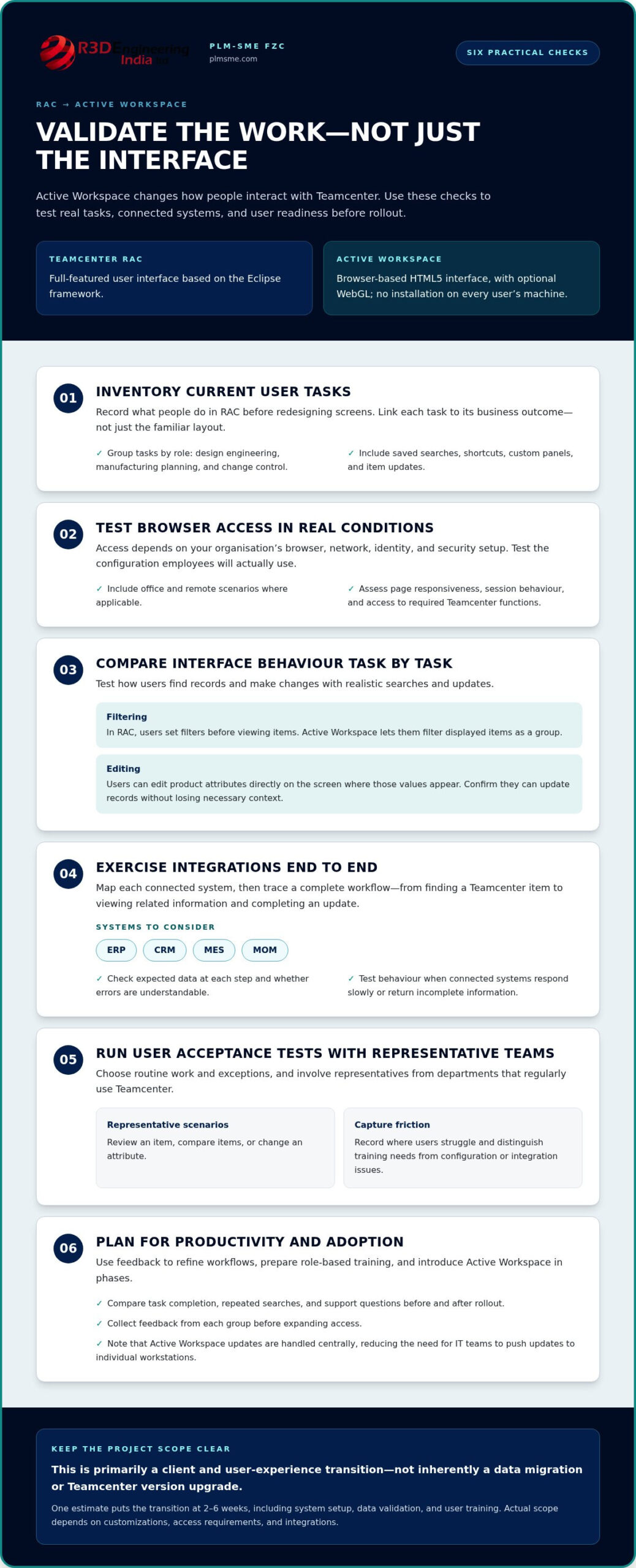
Teamcenter RAC is a full-featured user interface based on the Eclipse framework. Active Workspace is browser-based and uses HTML5, with optional WebGL. It doesn’t require installation on every user’s machine. The migration changes how people interact with Teamcenter, so test workflows and connected systems together.
- Inventory current user tasks. Before redesigning screens, record the RAC tasks people perform. Group functions such as saved searches, shortcuts, custom panels, and item updates by role. Include design engineering, manufacturing planning, and change control. Connect each task to its business outcome rather than simply copying the current layout. This helps distinguish essential capabilities from familiar interface habits.
- Test browser-based access in real working conditions. Active Workspace avoids installing its client on every workstation, but access still depends on your organisation’s browser, network, identity, and security setup. Test the configuration employees will actually use. Include office and remote scenarios where applicable, and assess page responsiveness, session behaviour, and access to required Teamcenter functions.
- Compare interface behaviour task by task. RAC users set filters before viewing items; Active Workspace lets them filter displayed items as a group. Users can also edit product attributes directly on the screen where those values appear. Test these differences with realistic searches and updates. Confirm that users can find the right records and make changes without losing necessary context.
- Exercise integrations through complete workflows. Map each connection to systems such as ERP, CRM, MES, or MOM. Trace a workflow from finding a Teamcenter item through viewing related information and completing an update. Check that expected data appears at each step, errors are understandable, and the process behaves correctly when connected systems respond slowly or return incomplete information.
- Run user acceptance tests with representative teams. Select scenarios that reflect routine work and exceptions, such as reviewing an item, comparing items, or changing an attribute. Involve representatives from departments that regularly use Teamcenter. Ask them to complete tasks in Active Workspace, record points of friction, and distinguish training needs from configuration or integration issues.
- Plan for productivity and adoption. Compare task completion, repeated searches, and support questions before and after rollout. Use the findings to refine workflows and prepare role-based training around each team’s responsibilities. Introduce Active Workspace in phases and collect feedback from each group before expanding access. AWC updates are handled centrally, reducing the need for IT teams to push updates to individual workstations.
Validating data access, relationships, permissions, and integrations
Validate the Active Workspace experience using real Teamcenter records and connected workflows. Follow these steps to identify access gaps, relationship errors, and integration failures before rollout.
-
Validate data access and relationships
Start with representative records used by engineering, manufacturing, and change management. In Active Workspace, confirm that each role can find the items it needs. Test searches, saved views, and navigation from an item to its related parts, documents, and changes. Displaying an item is not enough if key relationships are missing or inaccessible.
Use known examples from your Teamcenter environment. For a product structure, compare the parent item, child components, attached specifications, and revision details. Confirm that relationships remain meaningful when users open records through different paths. Check that expected business rules still apply to accessible records. Record mismatches, missing links, and unexpected results against the relevant object or workflow.
Validate data integrity alongside user access. Compare selected source and target records for identifiers, attributes, revisions, and relationships. Investigate missing or altered values before considering the workspace ready. Keep a defect log that identifies the affected record, observed result, and expected result. This provides a clear basis for retesting corrected data and supports data governance after migration.
-
Verify permissions and integrations
Test permissions with accounts that represent actual Teamcenter roles, not just an administrator account. Confirm users can view, create, edit, or submit records only when their responsibilities allow it. Include restricted objects and controlled changes in the test set. Check both permitted and blocked actions: access failures can disrupt work, while excessive access can expose information beyond a role’s needs.
Then trace each integration through a complete business scenario. For example, follow a Teamcenter item linked to an ERP record and verify that expected information appears at each step. Exercise integrations with ERP, CRM, MES, or MOM systems where they support the workflow. Check field mapping, relationship references, error handling, and whether a failed exchange gives users a clear status rather than misleading data.
Run tests in Active Workspace using the same roles and process sequences planned for rollout. Capture results by workflow, record type, permission, and connected system. Retest failures after configuration or integration changes, including records that previously showed incorrect relationships. This disciplined validation helps teams distinguish data issues from access rules or interface problems. For complex connected workflows, Teamcenter integration planning can help structure integration requirements and validation.
Assessing existing Teamcenter customizations and configurations
Build an evidence-based inventory before deciding what belongs in Active Workspace. Assess each RAC capability against its current purpose, users, dependencies, and future requirements.
- Catalogue custom code and configuration. List each RAC extension, workflow, form, rule, saved query, and role-specific setting. Record its owner, users, business purpose, and connected systems. For example, distinguish a custom change-review screen from standard Teamcenter workflow configuration. This inventory gives the assessment team a traceable view of what exists, rather than relying on informal knowledge or outdated documentation.
- Measure each capability against a real task. For every entry, describe the task it supports and the problem it solves. Ask a design engineer to show how a custom part-search panel helps locate released components. Note the inputs, decisions, outputs, and exceptions. If a capability has no clear user or business purpose, investigate its current use before assigning migration effort.
- Classify the future action. Decide whether to reconfigure, customize or reimplement, redesign, replace, retire, or investigate each capability. Reconfigure when existing functions meet the need; redesign when the RAC interaction no longer suits the intended workspace task. Retire obsolete functionality only after identifying dependent workflows, reports, and integrations that may still rely on it.
- Separate required outcomes from RAC implementation. Document the business rule or result first, then examine how the current customization delivers it. A custom approval panel, for example, may encode routing rules that remain essential even if its RAC layout does not. Preserve required behaviour while assessing a suitable Active Workspace design instead of treating existing screens as fixed specifications.
- Prioritise a smaller customization footprint. Carrying every RAC extension forward can preserve maintenance work without improving the user task. Prefer standard configuration when it meets the documented requirement. Retain custom development only when a distinct business outcome depends on it. For each exception, record the reason, affected roles, and support implications so future administrators understand why it remains.
- Test decisions in an Active Workspace prototype. Select representative cases from the inventory, such as a configured search, custom attribute display, or change workflow. Ask users to complete the original task and compare the result with the requirement. Capture missing behaviour, unnecessary steps, and integration dependencies. Use those findings to revisit classifications before finalising the implementation backlog.
Compare the steps, outcomes, and exceptions with the RAC process. Record where users complete the task without help, where they need clarification, and whether the required result is preserved. Use these observations to revisit the proposed action and resolve gaps before committing to a migration approach.
Keep customization to a minimum to avoid carrying an unnecessary code footprint into the new system. Apply this principle alongside documented business requirements: retain an exception only when it supports a distinct outcome that standard configuration cannot meet. Keep the decision record with the inventory, including why the capability remains, which roles depend on it, and what support it requires. Reassess uncertain or unused entries with their owners rather than treating the existing implementation as proof of continuing need.
Mapping business requirements to Active Workspace
Translate business outcomes into testable Active Workspace tasks before configuring screens. The following steps connect user needs, workspace capabilities, and acceptance criteria.
- Define each requirement as a user outcome. State what a role must accomplish, which Teamcenter information it needs, and what result completes the task. For example, a change coordinator may need to review an affected item, its related documents, and its revision status. Focus the requirement on the decision or action, not the RAC screen layout.
- Map each outcome to workspace capabilities. Active Workspace can be configured to include most RAC features, as well as capabilities that RAC doesn’t provide. Match requirements to available functions before proposing custom development. For instance, users can edit product attribute values directly on the screen where they appear. Specify which attributes and roles need that interaction.
- Redesign tasks around the new interaction model. RAC users set filters before viewing items, while Active Workspace supports filtering after items appear as a group. Map the search requirement to this sequence. Test whether users can narrow results after an initial search, then open the right item without losing the context needed for their task.
- Prioritise requirements by role and workflow. Group requirements by the teams performing them, such as design engineering or change management. Link each requirement to its inputs, decisions, and outputs. A product comparison task, for example, may require users to select two or more items and compare them side by side. Record the roles that need that capability and its intended business use.
- Set acceptance criteria for each mapped task. Describe the expected result in observable terms. For an attribute update, specify the record, value, role, and resulting screen behaviour. For a filtered search, define which items should appear after users apply criteria. These examples give testers a consistent way to determine whether a requirement works, fails, or needs refinement.
- Trace requirements to configuration and dependencies. Connect each task to its relevant Teamcenter objects, business rules, and integrations. Active Workspace is a browser application using HTML5, with optional WebGL, so include the intended browser experience in usability testing. Keep a traceability record linking business needs to configuration, test scenarios, and decisions. Use it to identify gaps before implementation and to control later scope changes.
Use the traceability record to support the business case with evidence from your organisation, not generic industry averages. Compare the outcomes identified in mapped tasks with the current RAC experience, and make the rationale specific to the workflows being changed. Concerns about maintenance, efficiency, and modern digitalisation and collaboration requirements can guide local evaluation, but should not replace evidence from your organisation.
Include the web-based delivery model in requirements and acceptance criteria: AWC does not require software installation on every user’s machine. For gaps that remain after mapping available capabilities, design custom functionality for the Active Workspace experience rather than lifting and shifting the RAC interface. This keeps proposed changes connected to user tasks and helps reviewers distinguish requirements met through configuration from those needing purpose-designed functionality.
RAC-to-Active-Workspace transition strategy and planning
Build a roadmap around your Teamcenter environment, required workflows, data, and integration points. The steps below connect compatibility, scope, timing, and rollout decisions.
-
Confirm version compatibility
Start by identifying the Teamcenter release and the Active Workspace release planned for deployment. Compatibility depends on the specific release pairing and system configuration, so check that combination against Siemens’ applicable compatibility guidance before setting the implementation baseline. Don’t assume a newer workspace release is automatically suitable for your existing Teamcenter environment.
No single version pairing applies to every installation. Record the current release, target release, and required platform dependencies as planning inputs. Then base the technical design and test environment on that supported combination.
-
Estimate migration duration
Build a schedule from the actual work packages, not an assumed interface swap. One estimate for a Teamcenter transition from RAC to Active Workspace is 2-6 weeks, including data validation, system setup, and user training. Use that estimate as a planning reference, then account for your customization inventory, integration scope, and validation requirements.
Set milestones for environment preparation, configuration, data checks, user acceptance testing, and training. Dependencies affect the timeline: unresolved integrations or custom behaviour can extend testing and rework. Assign owners and acceptance criteria to each milestone so progress reflects completed work, not just time elapsed.
- Define whether Teamcenter itself changes. Moving from RAC to Active Workspace is primarily a client and user-experience transformation. It doesn’t inherently require replacing Teamcenter, migrating its data, or upgrading its version. Treat a platform upgrade or data migration as separate scope unless project requirements call for those changes.
- Plan customization decisions. Assess each RAC capability and classify it as reconfigure, customize or reimplement, redesign, replace, retire, or investigate. Preserve the required business outcome, but don’t carry every interface element forward unchanged. For example, redesign a custom approval screen around the approval task and its rules, then test the workflow in Active Workspace.
- Sequence integrations and rollout. Identify ERP, CRM, MES, and MOM integration points early. Place their configuration and end-to-end validation in the roadmap alongside user acceptance testing. Roll out by user group, incorporating feedback from each phase before expanding. For support with connected-system planning, plan Teamcenter integration development around defined workflows and requirements.
PLM-Sme FZC: Digital maturity assessments and reports
PLM-Sme FZC helps organisations assess their digital maturity and turn findings into practical priorities. Its digital maturity assessments and reports can clarify how Teamcenter workflows, integrations, and user requirements fit broader transformation goals. Use the findings to identify capability gaps, define a target state, and build a roadmap around your organisation’s needs.
If your migration also raises architecture questions, System and Solution Architecture can help shape the intended environment. Digitalisation Vision & Roadmap Consulting can connect the transition to wider business priorities, while industrial automation and AI solutions address related transformation opportunities. These services are most relevant when the move to Active Workspace forms part of a broader PLM or digitalisation programme.
Contact PLM-Sme FZC to discuss your assessment and roadmap needs.
Set the Direction for Your Next PLM Decisions
Use the transition to align your PLM direction with future engineering and operational priorities. A Teamcenter RAC to Active Workspace migration can surface decisions about data ownership, process consistency, and how future digital capabilities should fit together. Assign clear owners to those decisions and keep the roadmap connected to business outcomes throughout implementation.
PLM-Sme FZC supports broader planning through digital maturity assessments and reports, Digitalisation Vision & Roadmap Consulting, and industrial automation and AI solutions. These services can connect immediate PLM priorities with wider transformation planning without treating every new capability as part of the migration.
If you’re shaping the next phase of your Teamcenter environment, contact PLM-Sme FZC for migration advice. A clear direction gives your team a stronger basis for choosing what to improve next.
Frequently Asked Questions
What are the steps to plan and execute a Teamcenter RAC to Active Workspace migration?
Plan the migration by defining scope, aligning the target environment, and setting test and release criteria. Include a cutover rehearsal that follows a representative workflow from user access through task completion. Record who approves the release, how unresolved defects will be handled, and which business activities must continue during deployment. A clear decision log also helps teams distinguish agreed requirements from later change requests.
What are common risks and challenges when moving from Teamcenter RAC to Active Workspace?
Common challenges include overlooked dependencies, inconsistent role behaviour, integration faults, and workflows that behave differently in the browser. A permission may work for one record but fail for another object type or relationship. Create a risk register linking each issue to an affected role, process, and business impact. Use it to prioritise testing and assign owners to resolve issues before rollout.
How can users be trained and change management handled during the migration?
Train users by role and task with realistic exercises rather than feature tours. A design engineer might practise finding a part, reviewing its related document, and updating an attribute. Provide concise job aids for the new workflow, then gather feedback through team leads or designated user representatives. Review feedback regularly to identify confusion, update guidance, and address process changes before they become workarounds.