
How to Configure Teamcenter Security Clearance and Access Rules
Teamcenter access is not secured by stacking rules in priority order. Access Controls uses a flat list of granting rules, with no precedence or evaluation order, and denies access by default unless an administrator grants it. Effective Teamcenter security clearance and access rule configuration starts with this model, then defines rule conditions and permissions for the data and users involved.
It may seem logical to use a clear hierarchy to resolve overlapping access rules. In Teamcenter, a more reliable approach is to identify the security model, make each rule’s conditions and actions explicit, and review how the resulting permissions apply to the relevant data.
This guide explains how to structure rule conditions around data and user attributes, search and filter security models, handle rule interactions without relying on precedence, and apply a default-deny approach. It also outlines the project information needed to shape and test a configuration, so you can understand what supports controlled implementation and when specialist support is useful.
Key Takeaways
- Build conditions around both the protected data and the user attributes that should govern access.
- Search and filter security models against real data scenarios, such as limiting PDF read access by release status.
- Plan rules as grants that must work together, rather than relying on a priority order to resolve conflicts.
- Use default-deny as the baseline, then review and test permissions against documented access requirements.
Rule conditions based on data and user attributes
Start by defining the data, user attributes, and permissions each access rule must cover. Teamcenter evaluates these conditions through Access Controls; organizational ownership and project security describe different relationships and should not be treated as substitutes for explicit access rules.
Have a Consultant Define Rule Conditions From Data and Attributes
Map each protected object to user attributes such as group and role, then define the rule’s conditions and actions before saving it. For example, an access control list can grant a Viewer role read access to specified entities. Map directory identities through LDAP authentication as well, and check that each Teamcenter user belongs to the intended group and role.
- Align provisioning with login. The administrator selects one active user-provisioning microflow to match the login flow exposed to users. The consultant reviews the professional user directory setup so authentication identities map consistently to Teamcenter users, groups, and roles.
- Configure privileges and preserve the rule tree. To configure Access Manager privileges, the consultant works from a documented, reviewed plan and needs DBA access to change the Rule Tree. Before changes, they secure a backup and can export the tree in XML or JSON. Organizational ownership identifies responsibility for data, while project security governs project membership; access rules separately grant permissions.
Have a Consultant Test Search Results for Restricted Users
Sign in as a restricted user and test searches against the defined data conditions. For example, check whether a user without the required group or role can discover a protected item or access its content. Compare the results with the intended permissions, adjust the conditions or ACL, save the changes, and repeat the test.
- Audit the outcome and scope. Incorrect rules can expose restricted data or block legitimate work. The consultant records expected permissions, reviews the changed rules and ACLs against requirements, and tests the affected searches and access paths. Teamcenter security clearance works through granted access permissions, not a standalone organizational label. For UAE organizations, data-residency requirements concern hosting and architecture; the access-rule logic itself does not define where data is stored.
Security model search and filtering
Identify the relevant security model, then filter access by object type, status, and intended action. A Teamcenter licence type alone cannot restrict access to data released to production; permissions must be governed through access rules.
- Search by a concrete data scenario. The consultant searches security models using the object, status, and operation involved, rather than relying on broad labels. For example, Siemens Teamcenter access requirements can be tested against an Engine item and its associated PDF. This makes the filter useful for evaluating a real permission path, not just locating a model by name.
- Filter by release status. In the example, the consultant examines whether read access to PDFs is permitted when the data has Released status, applied to the Engine item. They compare the intended rule conditions with the item’s actual status and document the expected result. This distinguishes access to a released document from access to other related data.
- Separate application access from network filtering. Azure Firewall traffic filtering concerns network paths and endpoints; Teamcenter access rules govern permissions to data. The consultant maps which endpoints need to communicate, then treats network controls and object permissions as separate layers. In an Azure baseline, the login service accepts IPv4 and IPv6 URLs, while the identity service accepts IPv4 only. That distinction informs endpoint planning.
- Align the model with the deployment. For Teamcenter Security Services in the Azure baseline architecture, the TCSS session agent is installed in the web tier, which uses two subnets. The login service stores active sessions and SSO state information. The consultant records these dependencies in implementation documentation, then tests search and document access through the intended client and integration routes. For connected-system requirements, Teamcenter integration development can address the interface design.
- Confirm licensing assumptions. Advanced access decisions should be based on the configured rules and permissions, not on licence type alone. The consultant reviews the software configuration and relevant documentation to separate licensing questions from data-level authorization.
Access rule order
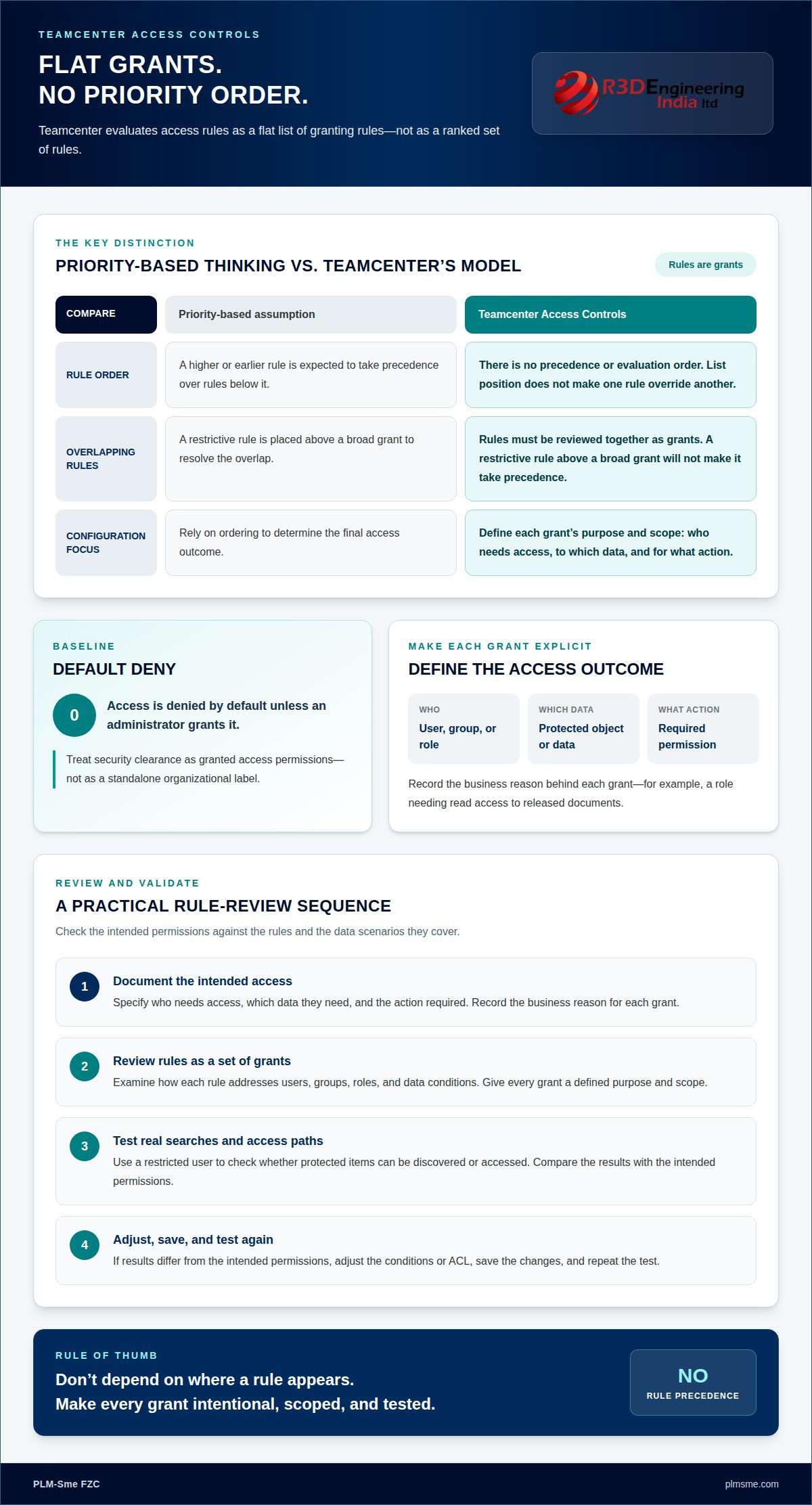
Teamcenter Access Controls evaluates a flat list of granting rules, without precedence or evaluation order. Define permissions so that each grant is intentional, rather than relying on one rule to override another.
- Document the access outcome. For each application scenario, define who needs access, to which data, and for what action. Record the business premises behind each grant, such as a role needing read access to released documents. This gives the consultant a clear target and helps reveal overlapping conditions before Rule Tree changes begin.
- Review rules as a set of grants. Because Teamcenter doesn’t apply rules by priority, placing a restrictive rule above a broad grant won’t make it take precedence. The consultant examines how each rule addresses users, groups, roles, and data conditions together. Each grant should have a defined purpose and scope, without assuming list position changes its effect.
- Plan Rule Tree changes before editing. A user changing the Teamcenter Access Manager Rule Tree needs DBA access. The consultant works from a documented, reviewed plan that considers impacts on other data, and secures a backup of the existing tree first. This creates a recovery point and clarifies which rules the application change is intended to affect.
- Preserve and assess the rule structure. The consultant can export a Rule Tree in XML or JSON before making changes. They review the proposed edits against the export and the documented access outcomes, checking for unintended effects on related data. Keep the rule tree clear and easy for administrators to navigate.
- Test changes across access paths. After saving changes, the consultant tests each defined user and data scenario against expected permissions. Rules administered through Active Workspace apply to all clients and integrations because evaluation occurs server-side. The consultant therefore tests relevant application and integration paths, then records results and addresses any mismatch before deployment.
Default-deny access protocol
Teamcenter Access Controls denies user access by default unless an administrator grants it. Set the baseline accordingly, then validate both denied requests and explicitly permitted work.
- Map required access before granting permissions. For each user group, identify the Teamcenter objects and actions needed for assigned work. For example, distinguish viewing a document from changing it. This access matrix gives the administrator a defined set of intended grants and prevents broad permissions from becoming the starting point.
- Keep unassigned requests denied. Define grants for approved user, group, role, and data conditions. Requests that don’t match those conditions should remain denied under the default. The administrator records why each grant exists, so later changes can be reviewed against the original work requirement.
- Test permitted and denied scenarios. The consultant signs in with representative Teamcenter accounts and tests specific actions against target data. Confirm that an allowed user can perform the required task, while an account outside the matching conditions cannot access that data. Record each outcome and investigate differences before deployment.
- Check every client path. Access rules administered through Active Workspace apply across clients and integrations because evaluation occurs on the server. Test the same intended permission through relevant interfaces and integration requests. This checks that one application path hasn’t been overlooked while another correctly enforces the configured rule.
- Review the active configuration after changes. The administrator compares saved conditions and access control lists with the approved access matrix, then retests affected requests. Keep the test results with the configuration record to support future audits and controlled updates. For implementation support, discuss Teamcenter access-control implementation with a specialist.
When upgrading from Teamcenter Connector 2506 to version 2512, the default SSO_ContextURLPath value changed from TCSSO to rest/tcsso/v1/callback. SSO setup uses deep links through /rest and /{url_prefix}, with /p as the default URL prefix.
PLM-Sme FZC: Teamcenter Integration Development
PLM-Sme FZC develops Teamcenter integrations with systems such as ERP, CRM, MES, and MOM. This is a practical next step when access rules need to remain consistent across Teamcenter and connected applications, or when integration requirements are part of a wider PLM architecture.
Shape the work around the systems involved, the data exchanged, and the user access scenarios the integration must support. A clear picture of current workflows and intended permissions helps define the integration scope. For broader transformation planning, Digitalisation Vision & Roadmap Consulting can help align PLM priorities with the organization’s direction.
Contact PLM-Sme FZC to discuss your Teamcenter integration requirements.
Make access governance part of your next PLM decision
As engineering workflows evolve, access governance needs to evolve with them. Include Teamcenter security clearance and access rule configuration in ongoing PLM planning, especially when processes, connected systems, or user responsibilities change. A documented approach helps teams assess whether access still supports operational needs without expanding permissions by default.
PLM-Sme FZC supports wider planning through digital maturity assessments and reports, Digitalisation Vision & Roadmap Consulting, and industrial automation and AI solutions. These services can connect security decisions with broader digital priorities, rather than treating configuration as an isolated technical task.
Share the Teamcenter environment, intended access outcomes, and related integration needs to frame the next discussion. Contact PLM-Sme FZC for Teamcenter help and take a considered next step toward access governance that fits your operational direction.
Frequently Asked Questions
How can a consultant restrict Teamcenter data by security classification or clearance level?
Represent classification through explicit data and user attributes, then define access conditions that grant only the intended permissions. For example, a protected design record can carry a classification attribute, while authorized users belong to a relevant group and role. Map each combination to its required actions and test representative records. A clearance label alone does not enforce access.
How can a consultant test and troubleshoot Teamcenter access rule configuration?
Compare expected permissions with actual results using test cases for specific users, objects, and actions. If a result differs, isolate the relevant conditions, such as the user’s group assignment, object status, or requested operation, then review the associated grant. Record the failed scenario and retest after each adjustment to identify the cause without obscuring it with unrelated rule changes.
What are best practices for Teamcenter security rule precedence and inheritance?
Teamcenter Access Controls uses a flat list of granting rules, so do not rely on rule order to resolve competing permissions. Treat each grant as an explicit decision, document its intended scope, and review the applicable access control list for the target data. If you expect hierarchy or inheritance to affect access, assess the specific objects and conditions, then validate actual access rather than inferring behavior from tree placement.